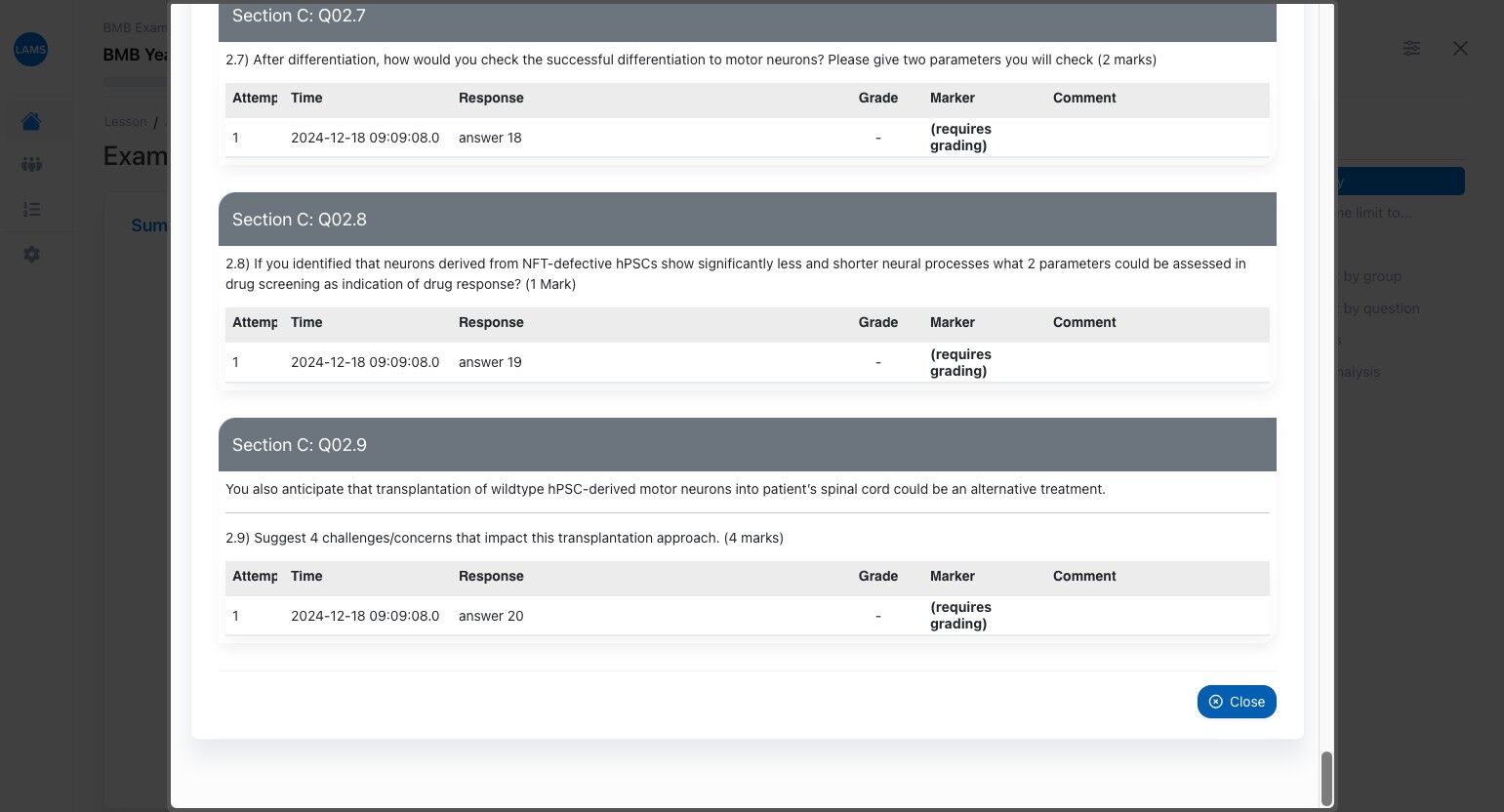
Sending out the exam for feedback
Setting Up and Reviewing a LAMS Exam Lesson
Once you have created the exam questions in LAMS, you will need to create a lesson and share a test link with staff to collect feedback before the exam is finalised.
- Create the Lesson:
- Go to LAMS.
- Click Add Lesson.
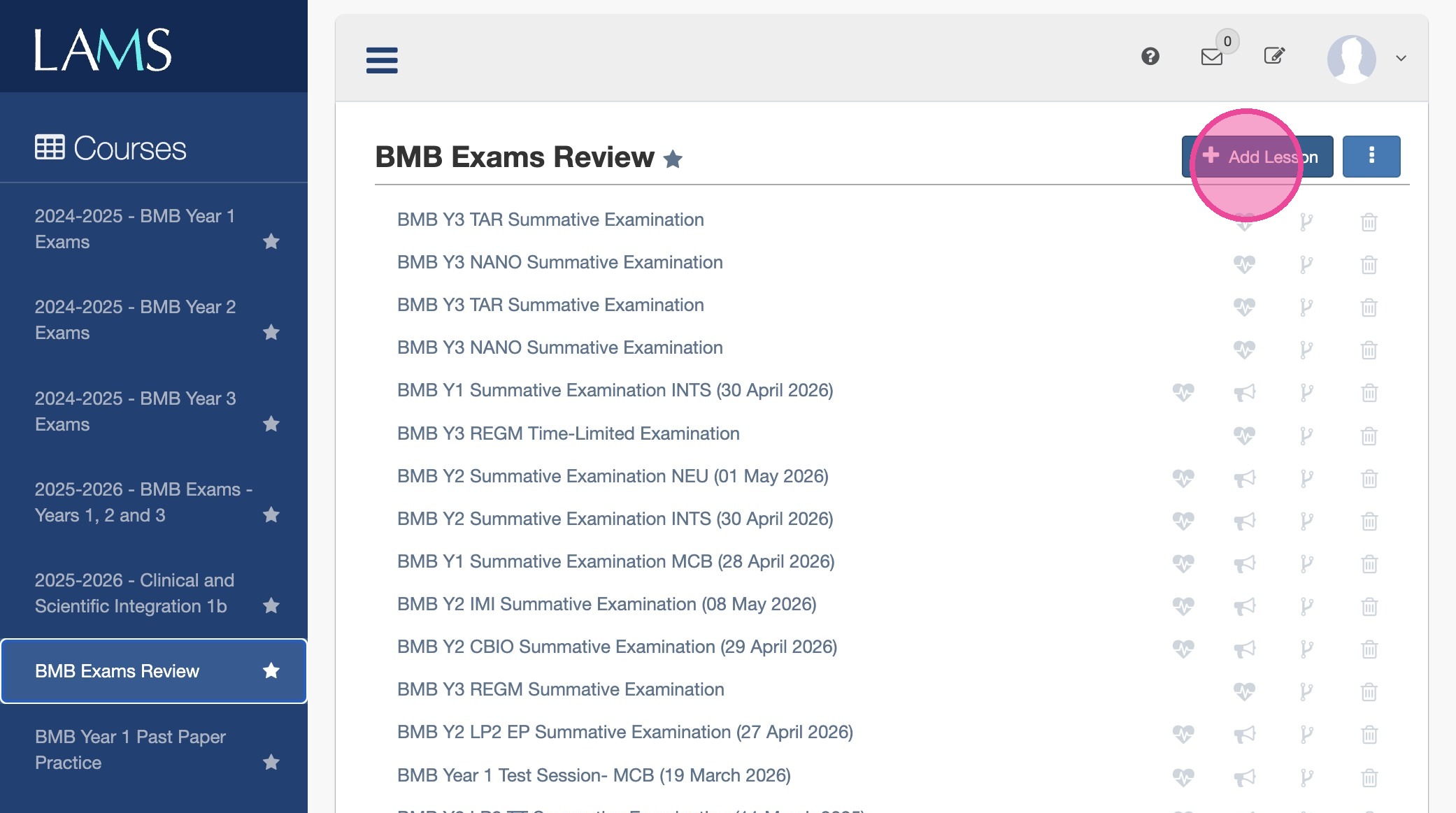
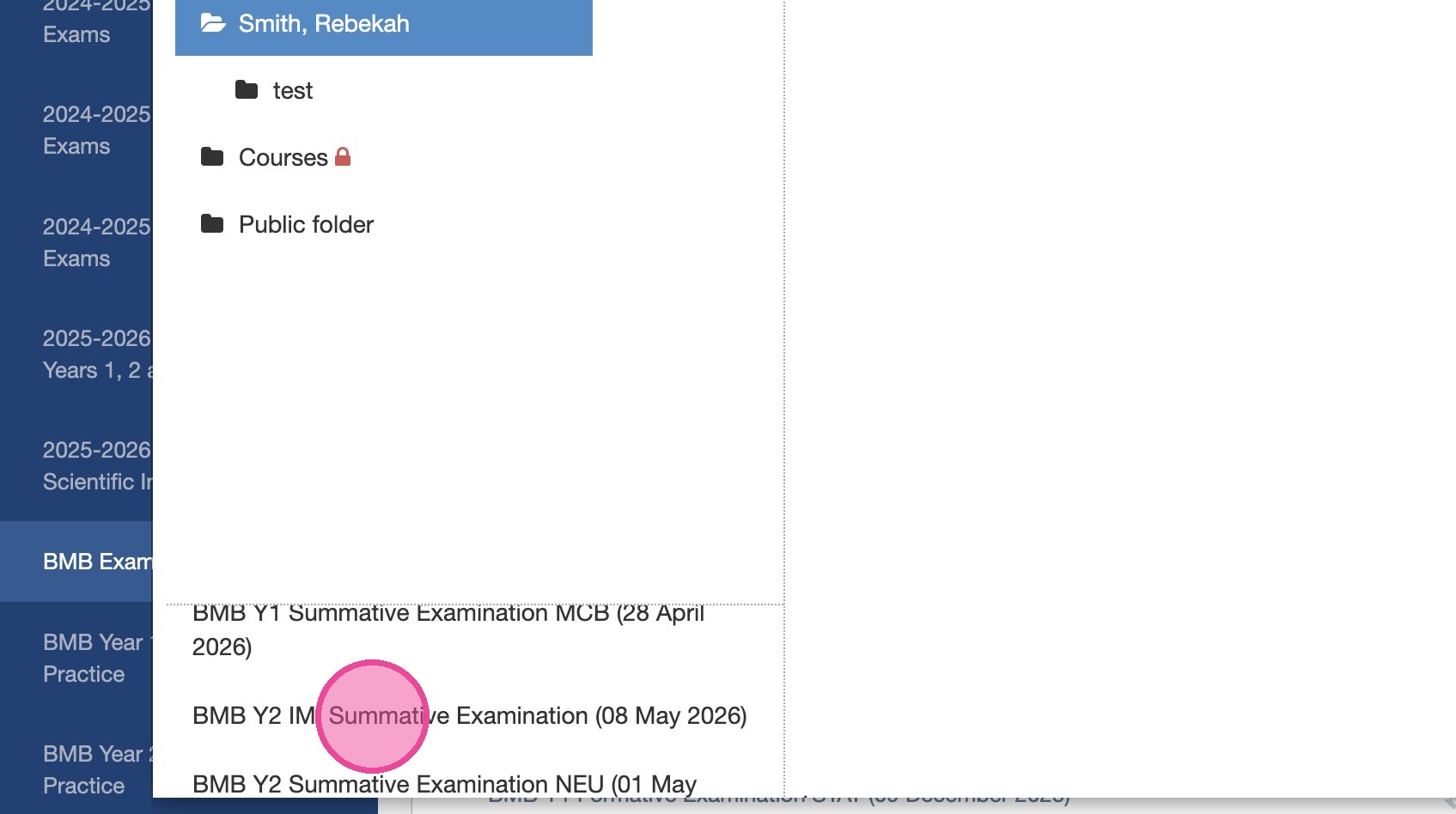
- Select the exam you have created.
- Ensure the lesson name is clear and appropriate.
- Configure Lesson Settings:
- Review the Class, Advanced, and Conditions tabs.
- Ensure learner access is correct (remove irrelevant users if needed).
- In Advanced, ensure only Enable Live Edit is ticked.
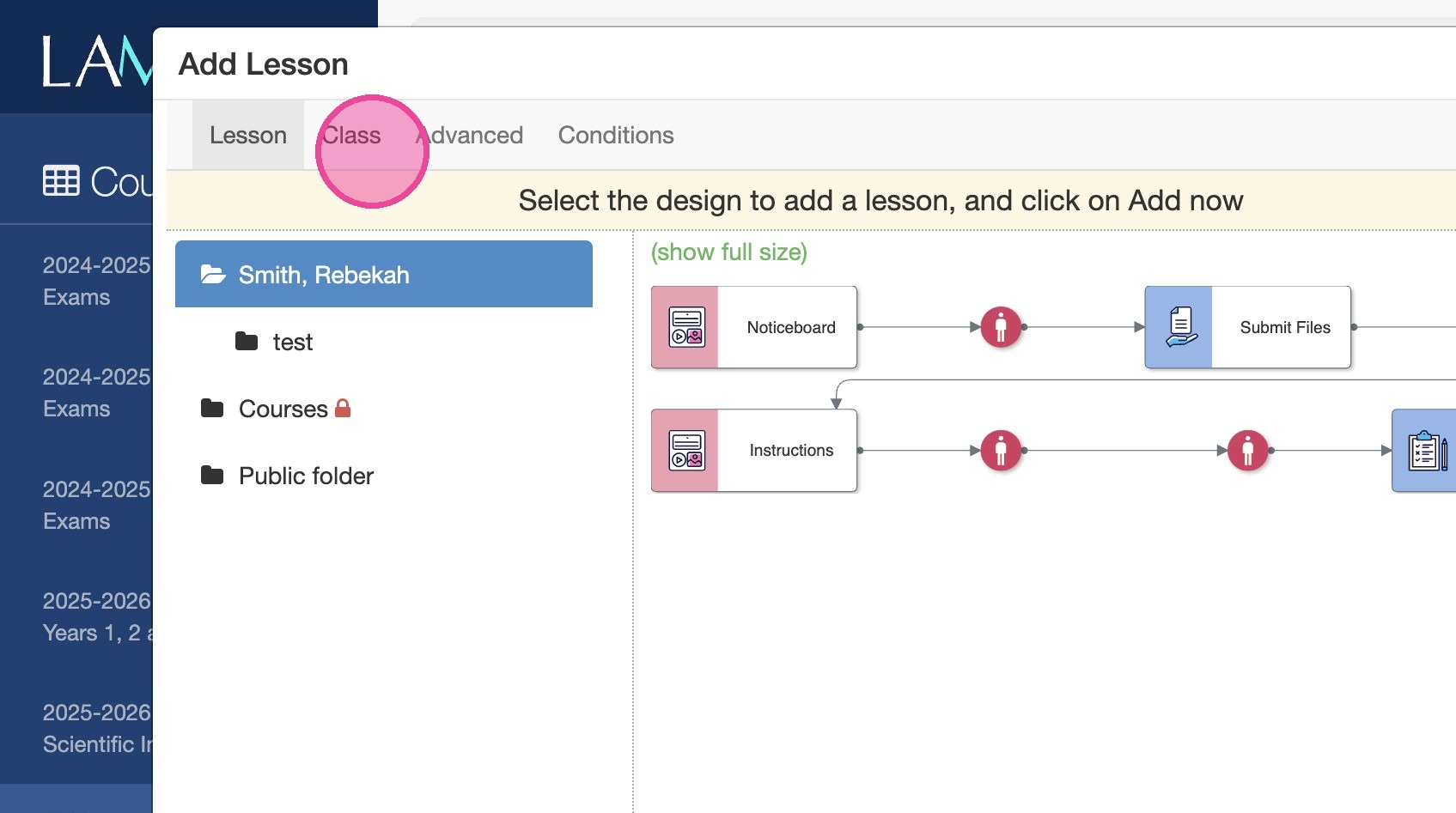
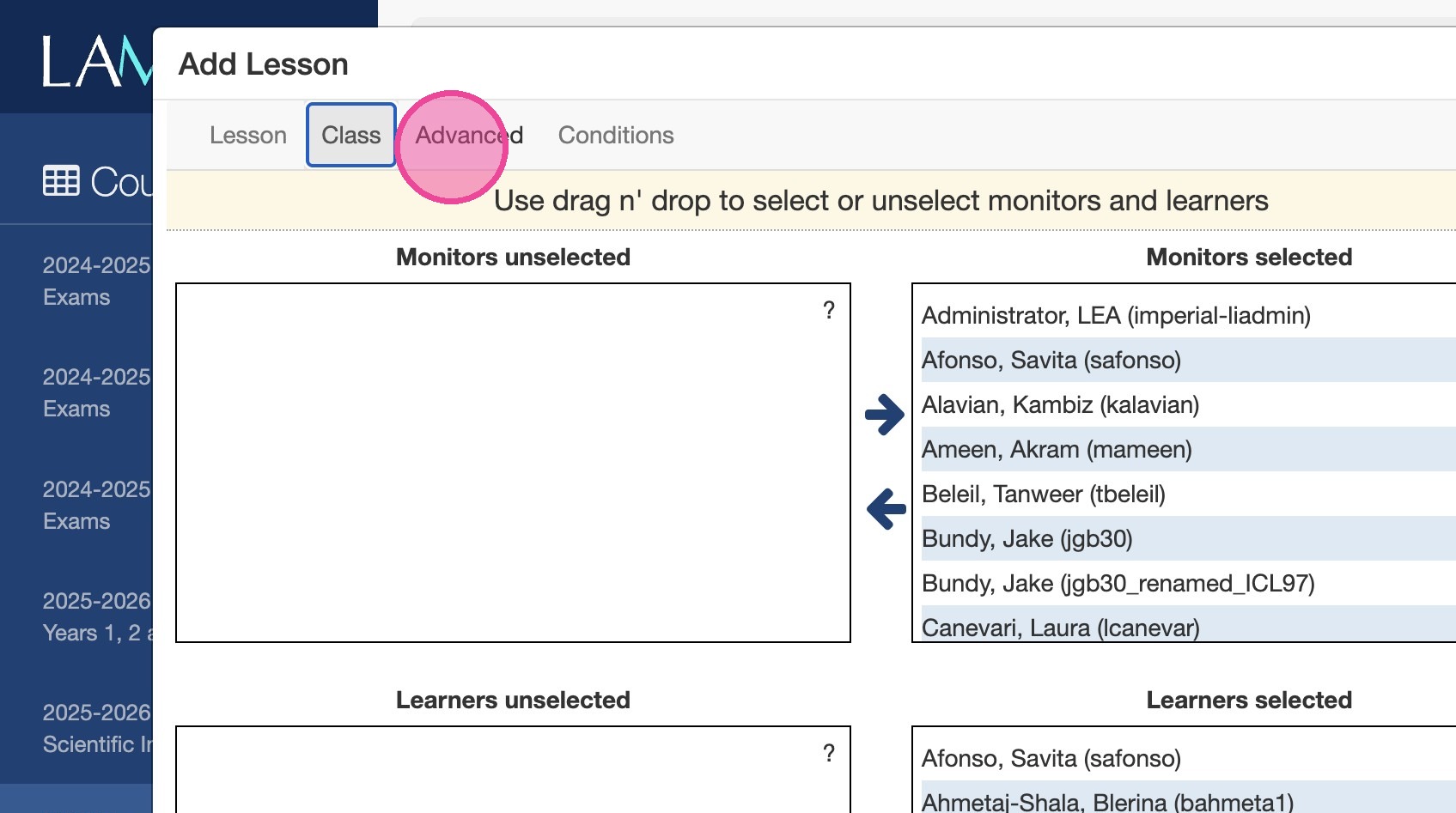
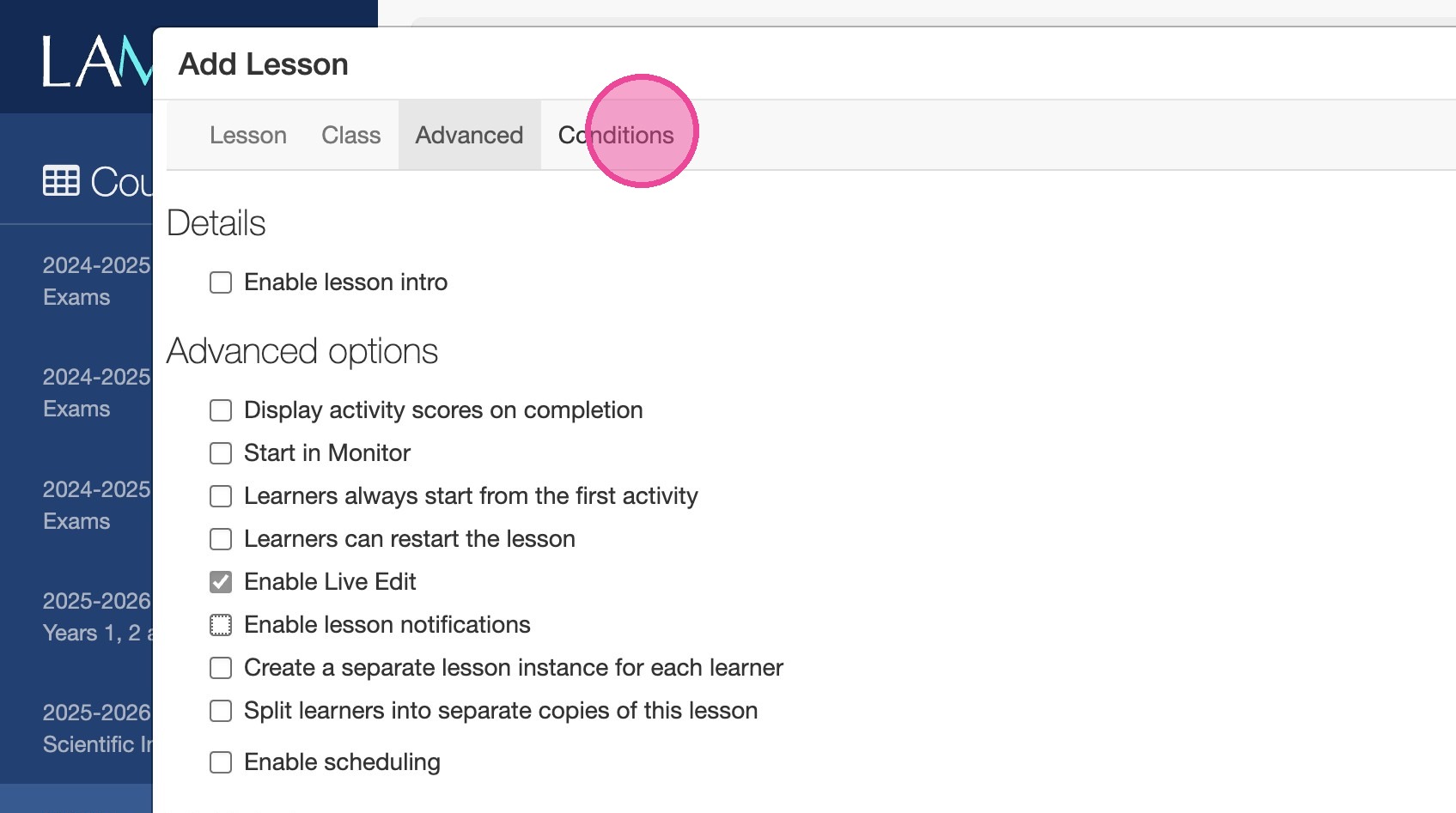
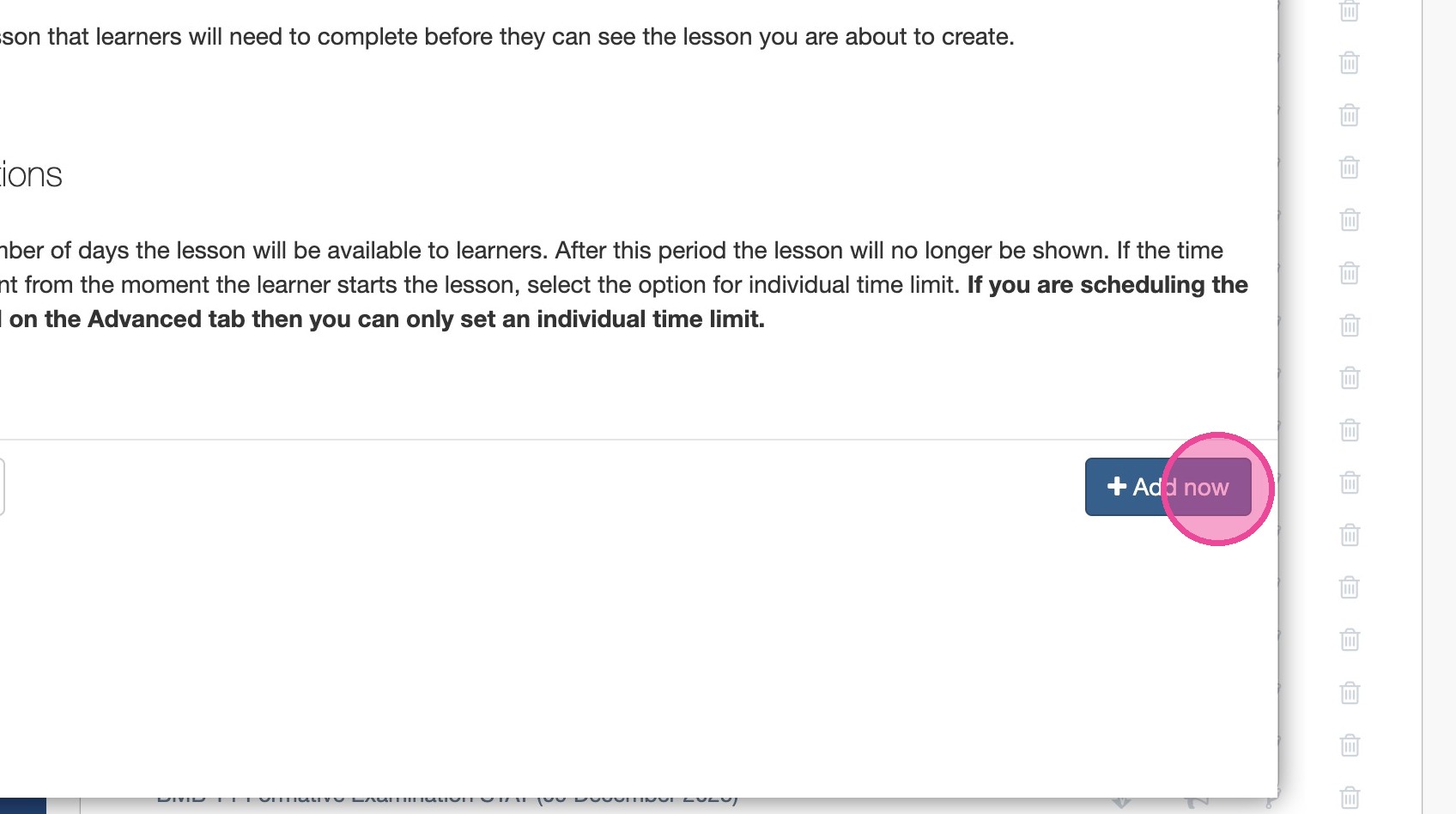
- Click Add now to create the lesson.
- Access the Monitor View:
- Click the Monitor icon for the newly created lesson.
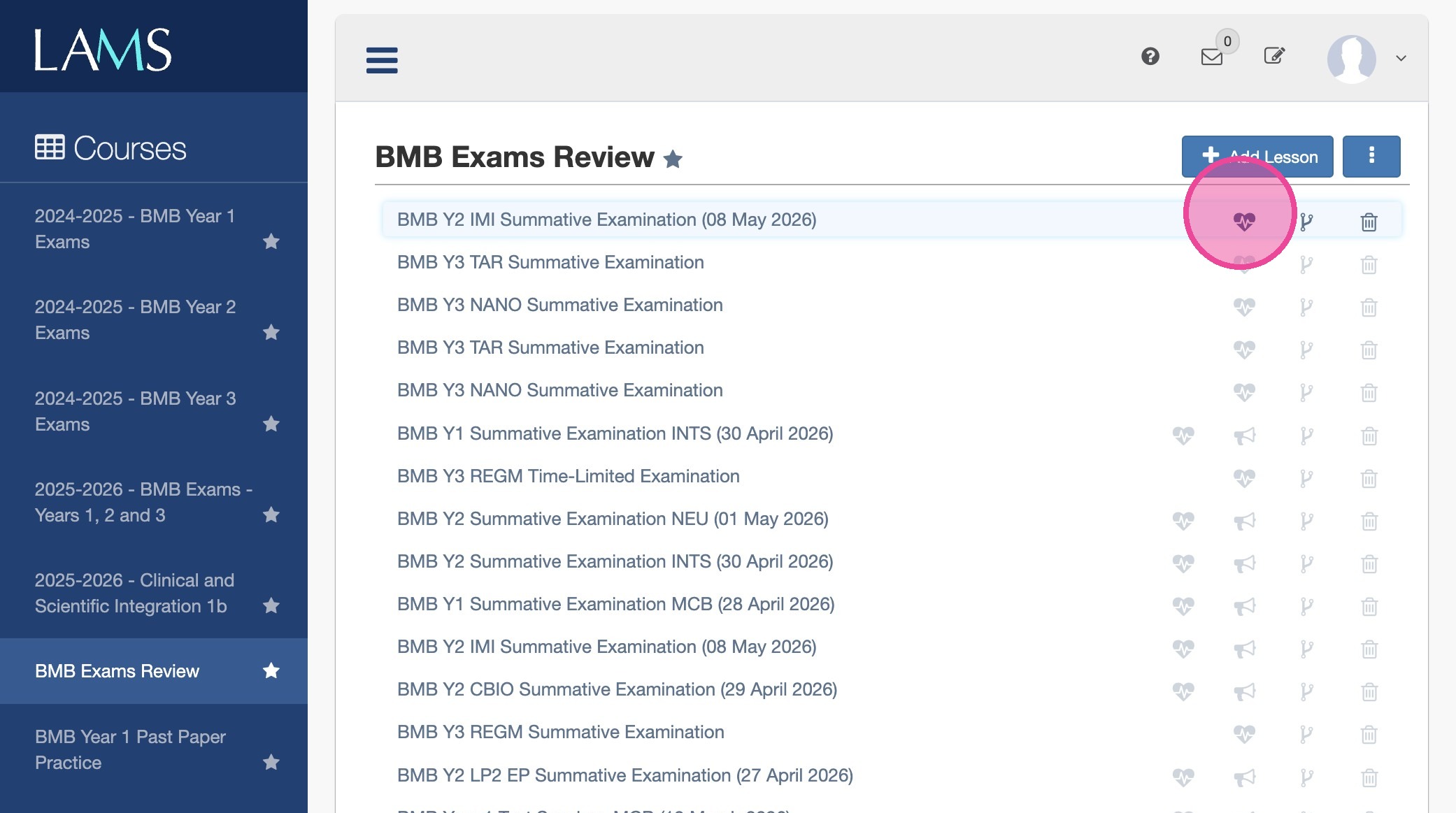
- Share Links for Review:
- Copy the URL of the monitor page (this is the monitor link).
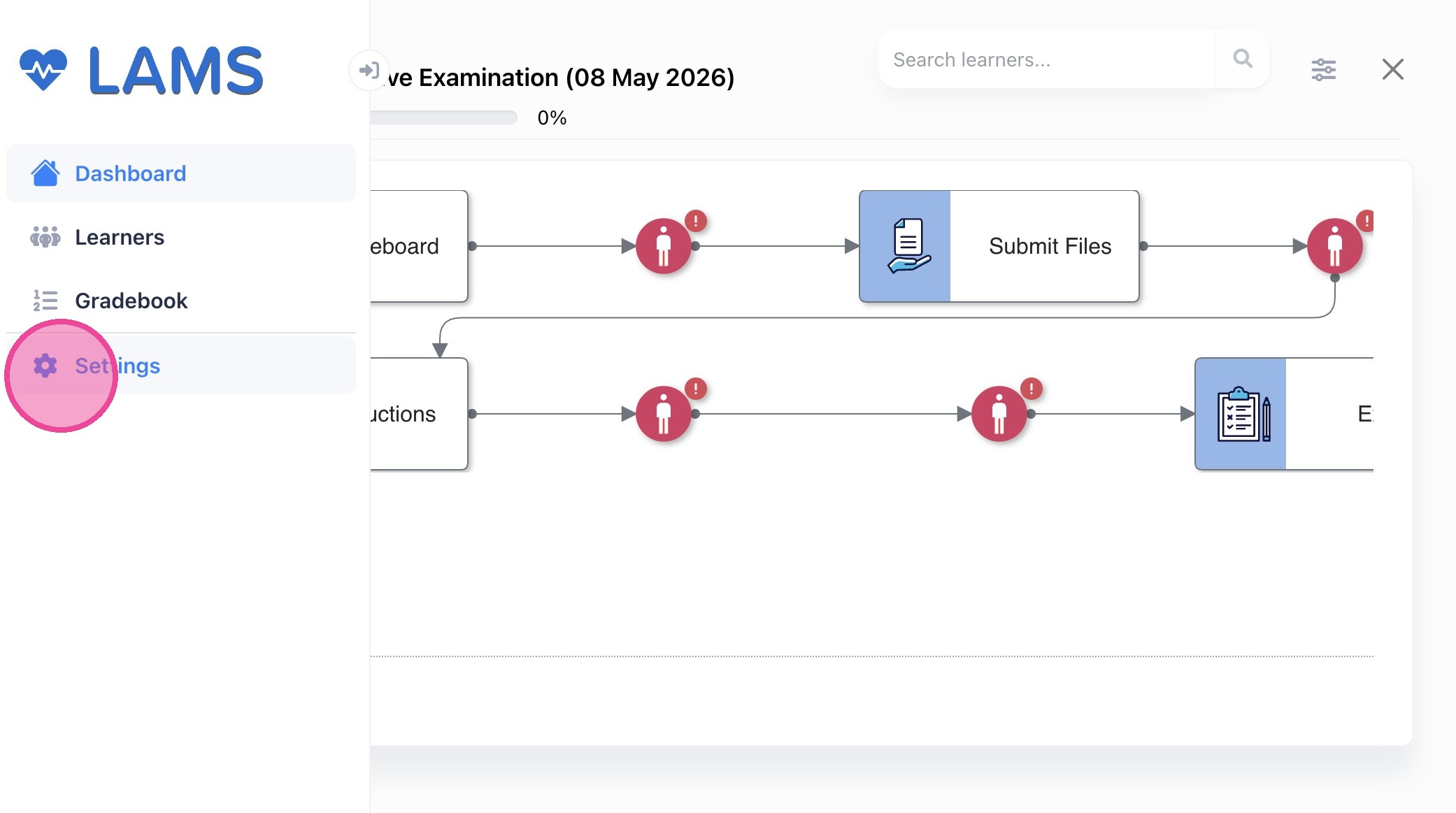
- Open the sidebar and select Settings.
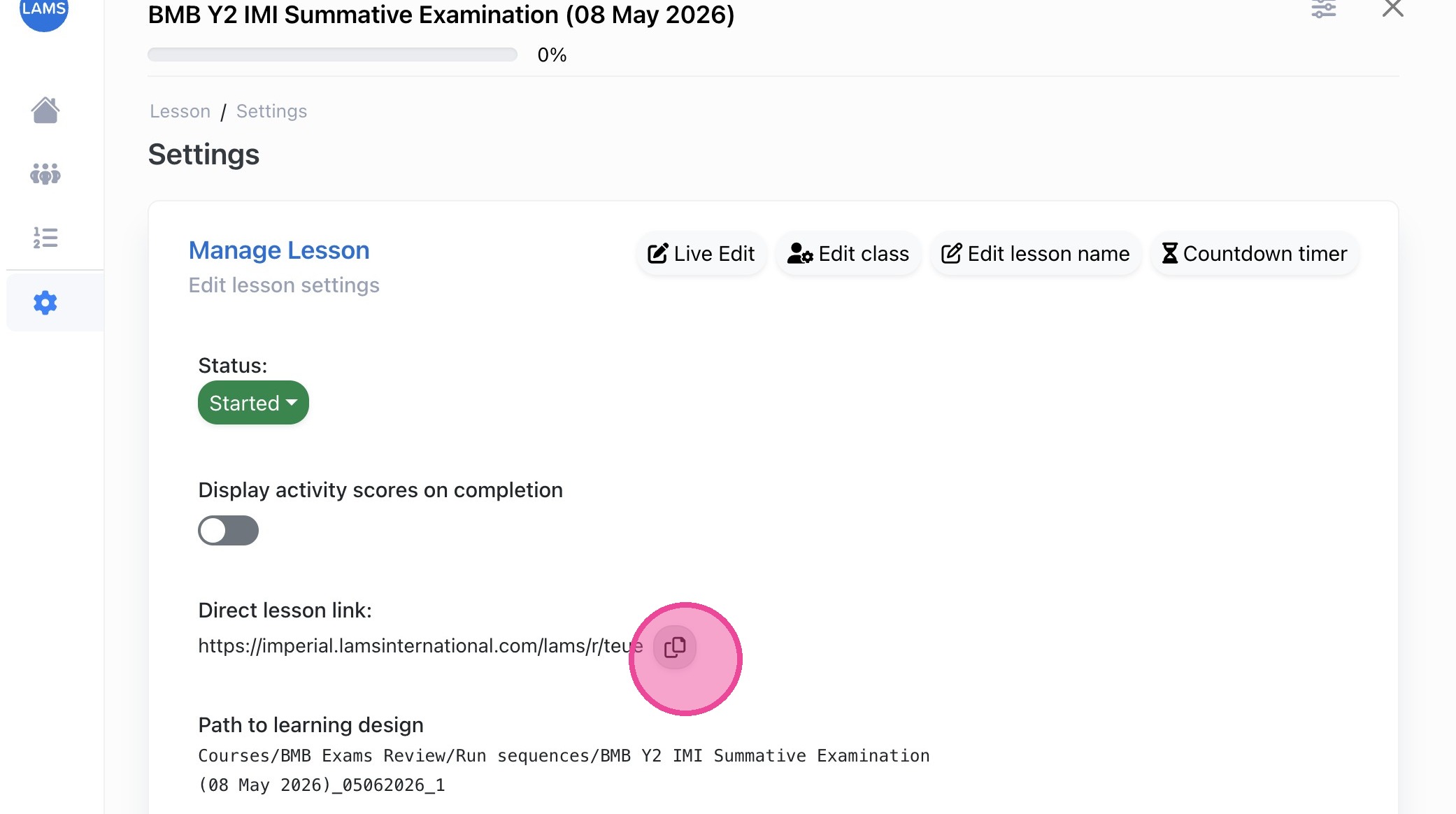
- Copy the Direct Lesson Link to share with reviewers.
- Prepare the Lesson for Review:
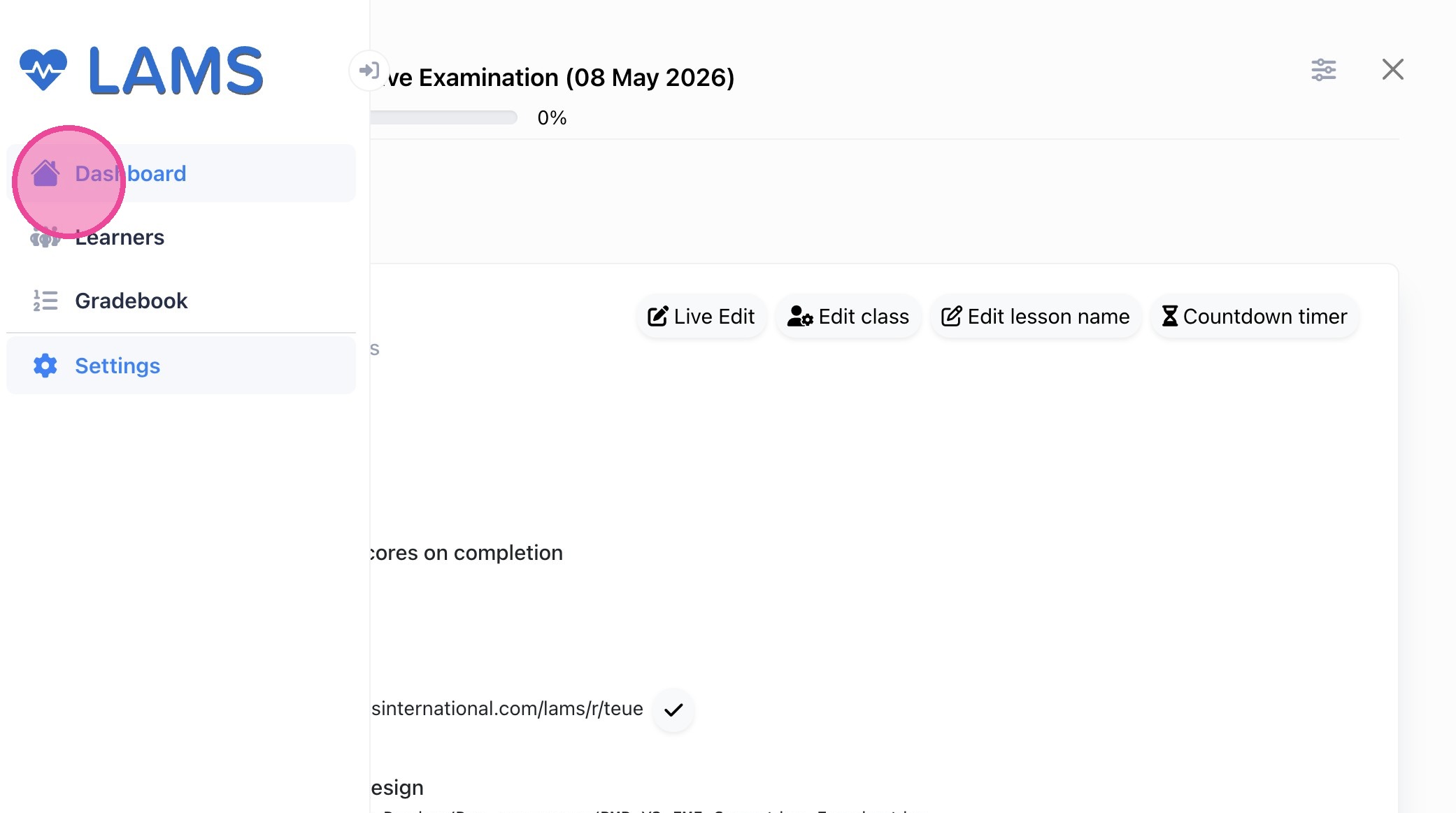
- Return to the Dashboard.
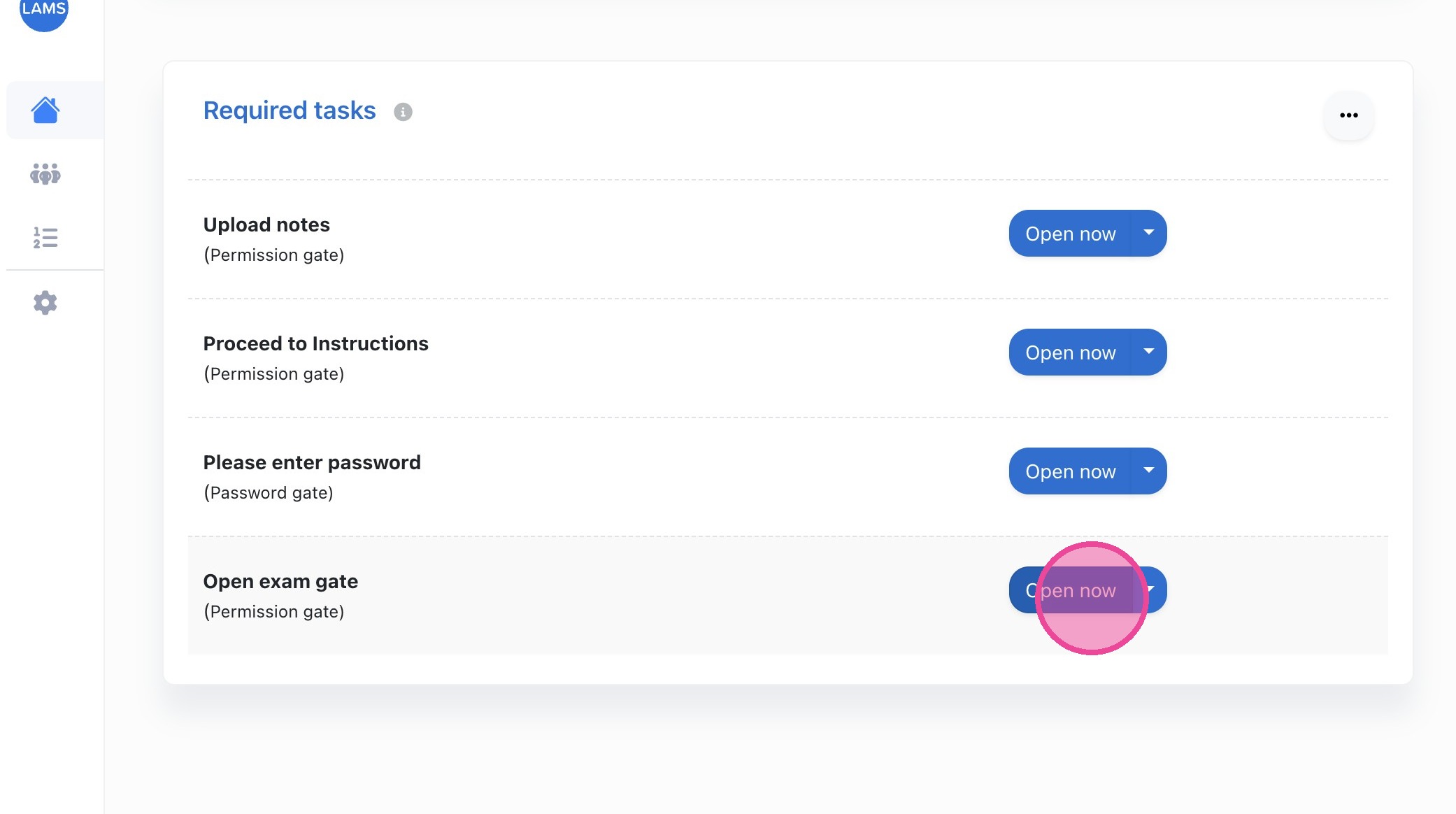
- Open all gates to allow full access for testing.
- If you want to test the password gate:
- Leave it closed
- Click the dropdown next to Open now
- Select Open Selectively to view the password
What to Check During Review
- Images: Ensure images, tables, and figures are clear and correctly sized.
- Correct Answers: Verify answers for all multiple-choice questions.
- Mark Allocation: Ensure marks per question are correct.
- Special Characters: Check formatting, symbols, and special characters display properly.
- Instructions: Confirm instructions (timing, marks, number of questions) are accurate.
Checking answers for MCQs
Tip: First attempt the exam as a student, answering all questions correctly, then submit before checking results.
- Go to LAMS.
- Click the Monitor icon for the exam.
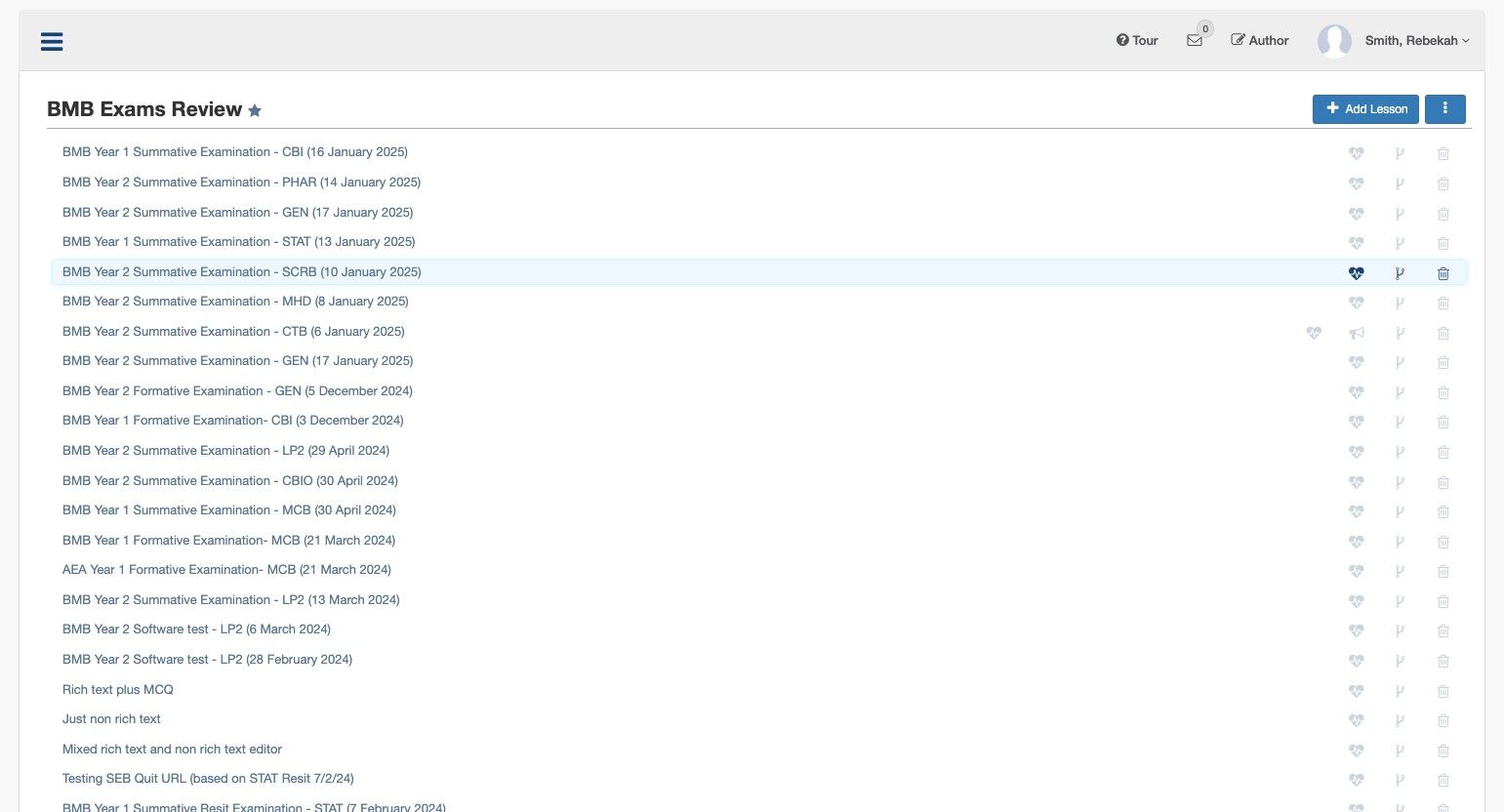
- Double-click Exam.
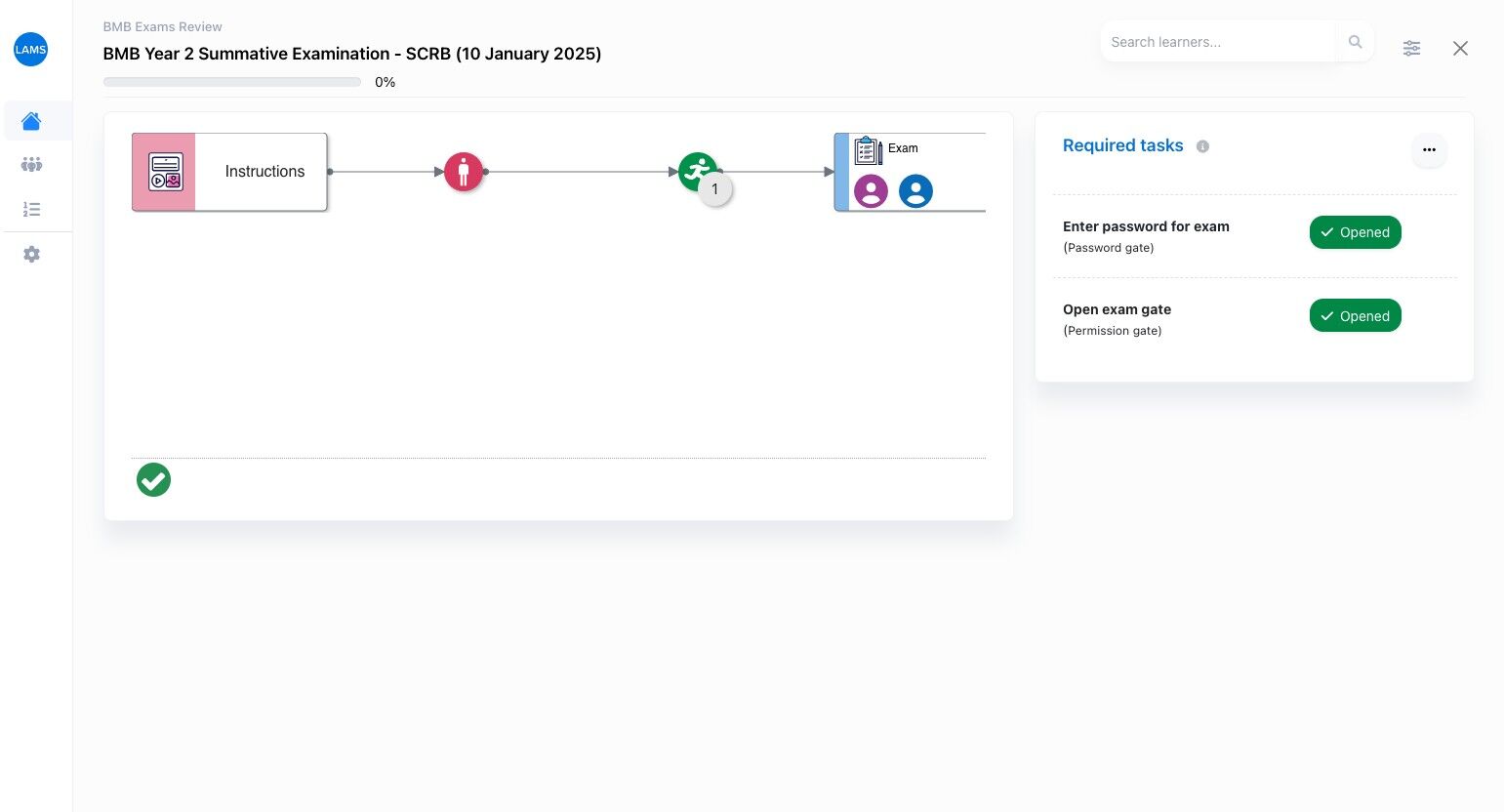
- Select a student attempt.
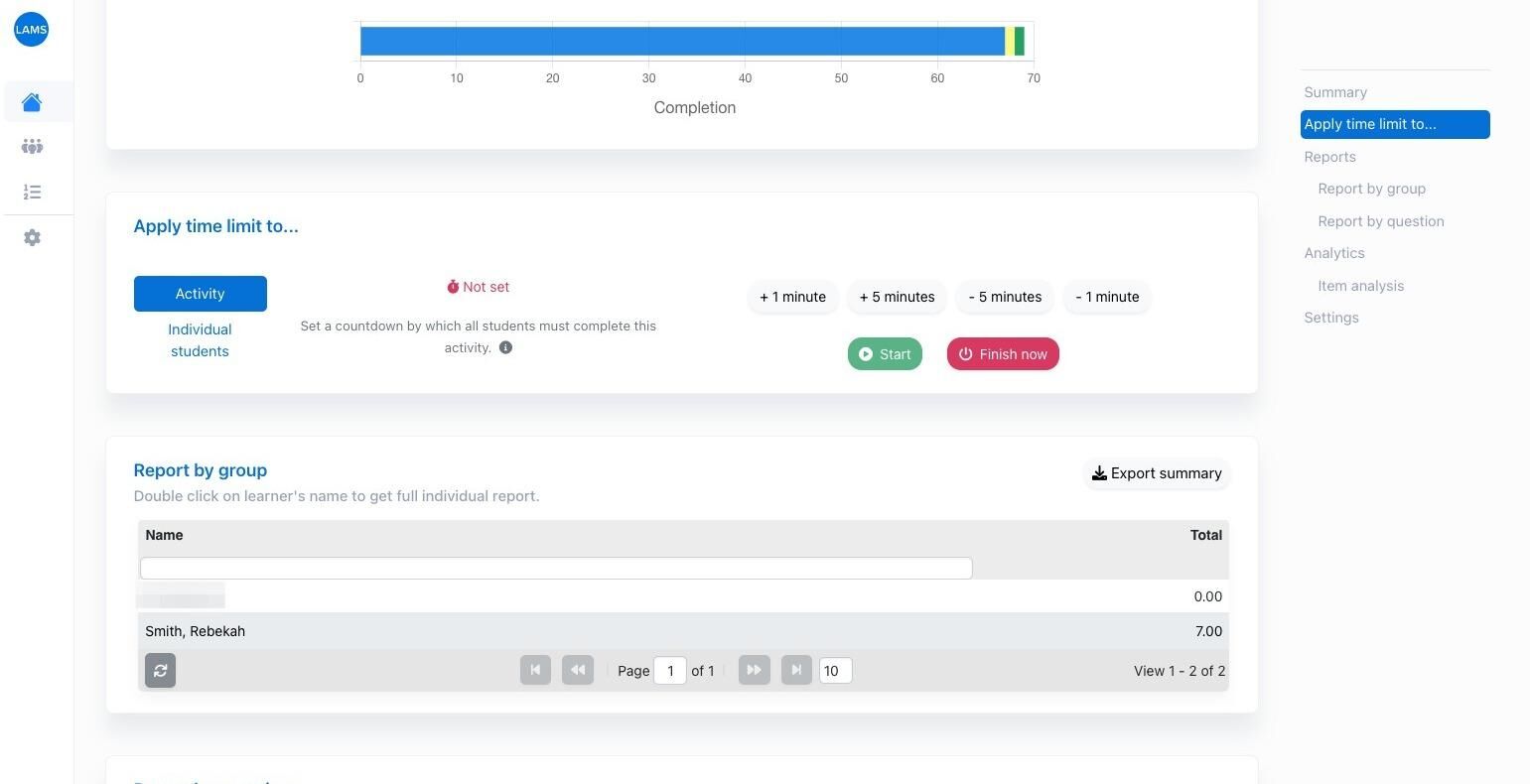
- Review the automatic grading:
- Correct answers will be awarded marks.
- Incorrect answers will score zero.