
Assessment Statistics Dashboard
This guide provides an overview of the key features within the Assessment Statistics Dashboard, displaying data from the academic year 2024–25 onwards. The dashboard refreshes daily, ensuring the information shown reflects the most up‑to‑date assessment data available.
Dashboard Navigation

Just below the dashboard title, you will find a navigation button:
- Request Support – Opens a support request form where you can report issues, request enhancements, or suggest new features for future updates.
Filters and Controls
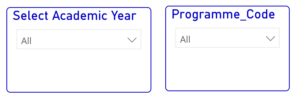
At the top of the dashboard, you’ll see the filtering panel:
- Select Academic Year – Filters the entire dashboard to display data for a specific academic year.
- Additional Filters – Accessible using the buttons below the main filter. These allow you to refine the data further, depending on the level and type of analysis required.
Once a filter is selected, all visuals update automatically to reflect your chosen criteria.
Key Dashboard Visuals
Assessment Details Table

Provides:
- A list of assessments for the selected group/module
- Key details and statistical figures for each assessment
Assessment Performance Visuals

- The three visuals displayed (from right to left) are:
- Scatter Plot
- Box Plot
- Bar Chart
- Click the ⓘ (Information) icon in the top-left corner of the Scatter Plot or Box Plot to learn more about how to interpret these visuals.
- These visuals help you:
- Compare student performance across different assessments.
- Understand how each assessment within a group or module performs relative to others in the same assessment category.
- Identify patterns, trends, and variations in assessment results.
- The Bar Chart provides a summary of assessment performance.
- The Scatter Plot and Box Plot provide additional insights into the distribution and spread of assessment results, making it easier to identify differences and outliers.
Support
If you ever need support or would like to request additional features, support links are available throughout the portal or submit a Medlearn Support ticket.
