Monitoring and Adding Timers during the exam
Running and Monitoring Timers in LAMS Exams (On the Day)
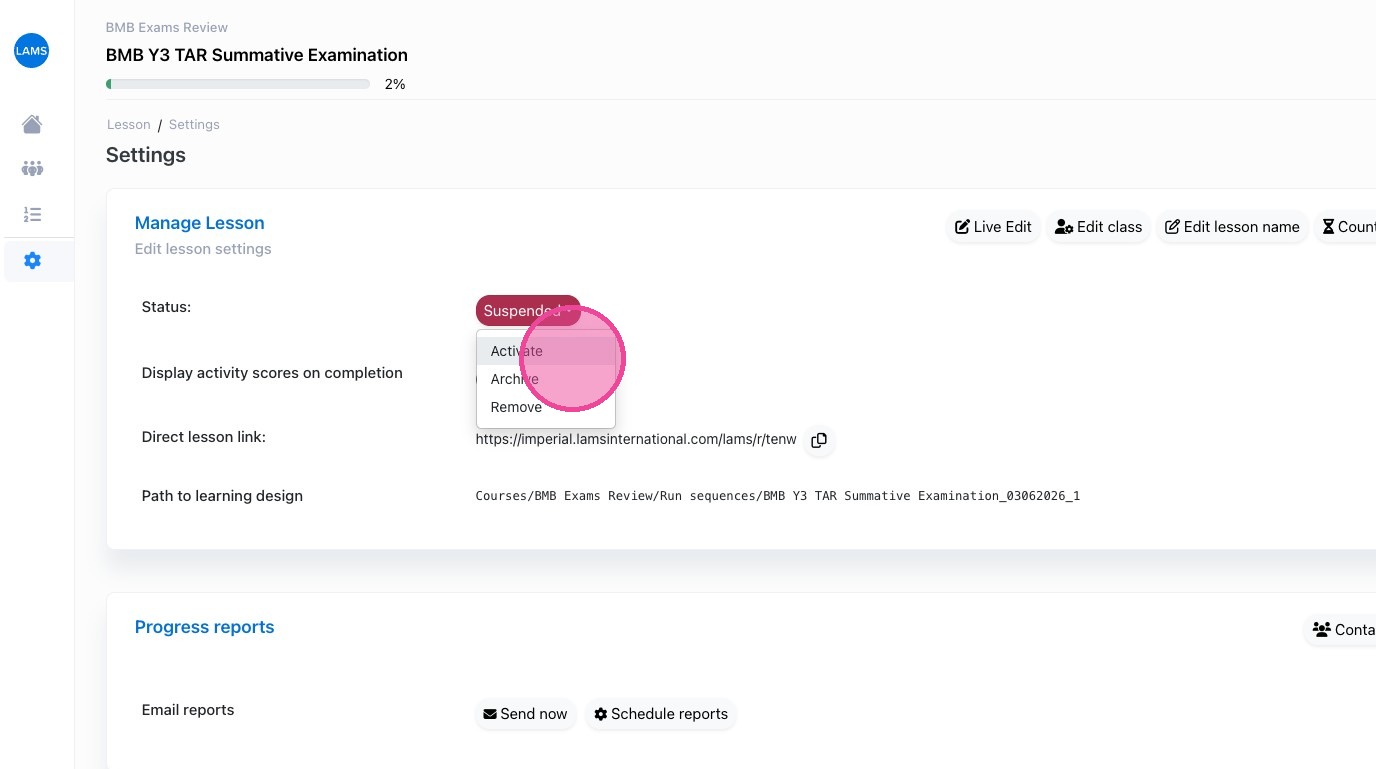
- Activate the Exam Link:
- Go to LAMS.
- Click the Monitor next to the exam name, then Settings.
- If the lesson is suspended, select Suspended and click Activate.
- The exam link will change from red to blue on the main page of LAMS.
- At this stage, students can access the exam but will only see the instructions page and will not be able to progress any further.
- Prepare Before the Exam (Approx. 30 minutes before):
- Open the Dashboard, then double-click the exam activity.
- Go to Timing Limits → Individual students.
- Add students who require extra time (overall extensions).
- Add students who will require breaks later (but no extra time).
- This avoids delays during the exam.
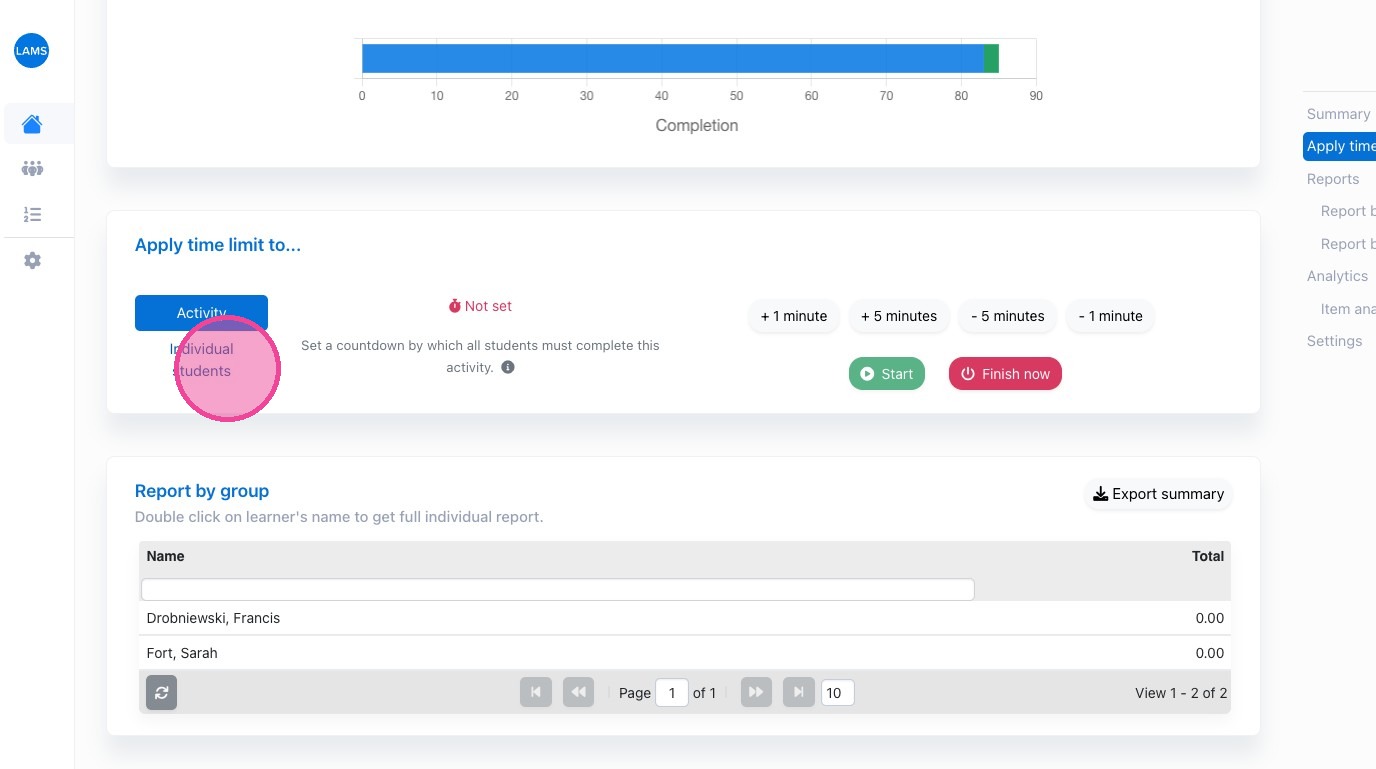
- Use the search bar to find and select students.
- Apply time using +/- 5 minutes or +/- 1 minutes as needed.
- Set Up Your Monitoring View:
- Open two browser tabs:
- Tab 1: Dashboard (monitoring view)
- Tab 2: Exam timers / Timing Limits page
- This allows quick switching during the exam.
- Prepare the Main Timer (2–3 minutes before start):
- In the Timing Limits tab, set the Duration for All Learners.
- Add the full exam time.
- Do not start yet — just prepare it.
- Final Pre-Start Checks:
- Confirm the total exam time is correct.
- Ensure all required students have been added for extensions.
- Check both tabs are open and ready.
- Students should now be waiting at the permission gate.
- Start the Exam:
- Open the permission gate to allow students into the exam.
- Immediately click Start on the main timer.
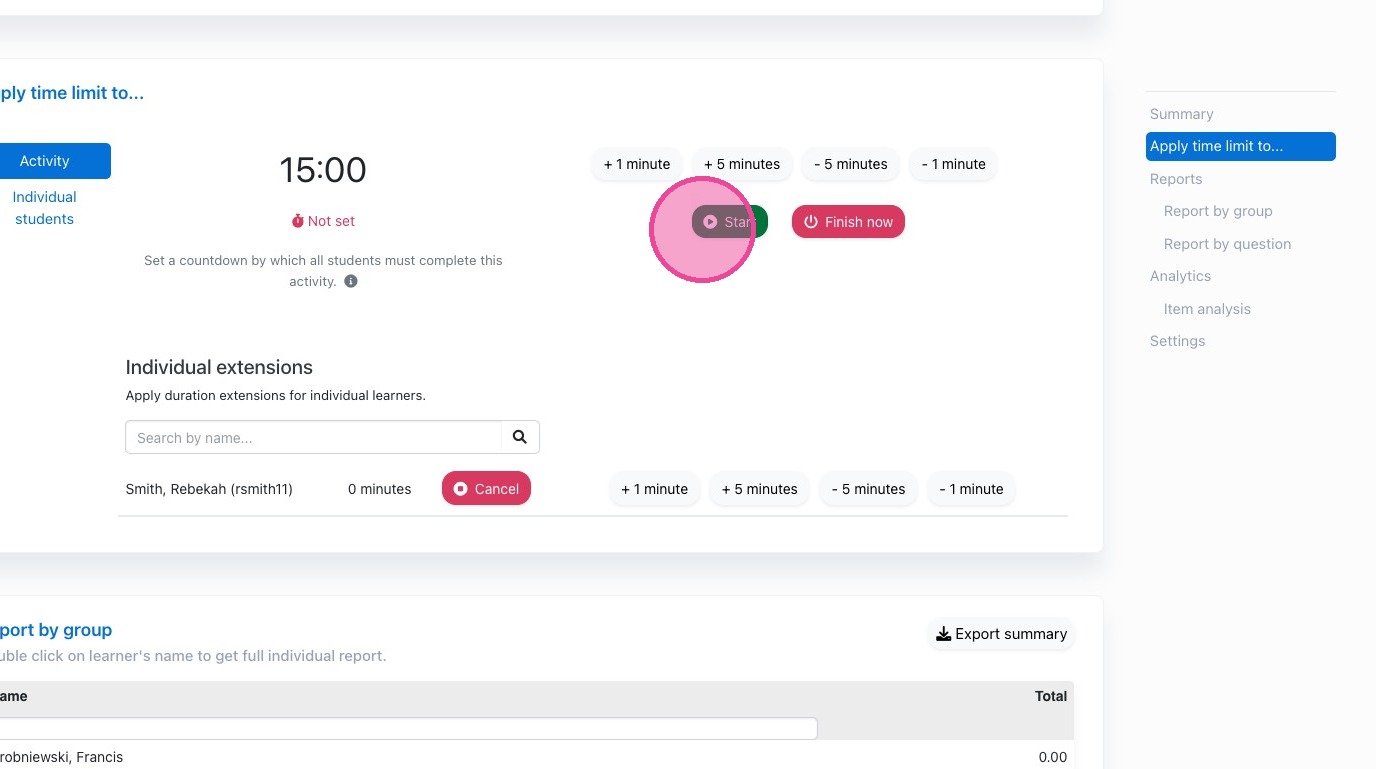
- The timer will appear on the right-hand side.
- Students with extra time will show their adjusted total time beneath their names.
- During the Exam:
- You can add or remove time at any point:
- Use +5 minutes or -5 minutes.
- Search for and add new students if needed.
- Use this for:
- Late arrivals
- Technical disruptions
- Break adjustments
- Important Timing Rule:
- Once a student’s timer reaches zero, no additional time can be added as there exam will be auto submitted at this point.
- 5–10 minutes before the main timer ends:
- Check all students’ remaining time
- Ensure extensions and breaks have been correctly applied
- Refreshing:
- Refresh the page if timings appear incorrect.
- Refresh after making multiple updates if needed.

