Peer Feedback Tool
How to create a Peer Feedback form
1. Go to the dashboard of the Peer Feedback page (https://medlearn.imperial.ac.uk/peer-feedback/)

2. Select the “Peer Feedback” tab to show all created projects. Here you can edit previously created projects or create a new one.
3. To create a new project, select “Add New Project”

4. You need to complete the following information:
- Title – The title for the project
- Instructions – Instructions for the students
- Available from date – The date the students will be able to access the project from
- Closing date – The date the students will not be able to access the project from
- Student Feedback available from – The date the students will be able to access their feedback from
- Penalties and Weightings – This only applies to the ‘point distribution’ and ‘Likert’ types of peer feedback.
- Algorithm Type – Recommended ‘Imperial Custom’
- Anonymity – Whether the students are identifiable via their feedback to others
- Self Review – Do the students need to review themselves
- Feedback Type – How would you like the students to complete their feedback
- Written Feedback – Would you like the students to also add written feedback along with the scores


5. Once you have saved the project after completing the above you will then be asked to attach the groups of students. You can do this by selecting ‘Add/Edit Groups’. You can also edit the groups using this option.


6. If you have selected Rubric as your feedback type you will also be asked to attach a rubric here ‘Edit Rubric’.

7. Once completed select ‘Update’ to save.
8. Once the start date has been reached, the students can access the project and collection has begun, no changes can be made to the settings or the groups.
How to access Peer Feedback results and feedback
To access results and feedback you’ll have to follow the steps below (please check you can access these pages in advance):
- For PG MedLearn, go to: https://pg-medlearn.imperial.ac.uk/peer-feedback/wp-admin/edit.php?post_type=peer_projects. For UG MedLearn access please liaise with your MedLearn admin to get access.
- Locate your ‘project’ from the list.
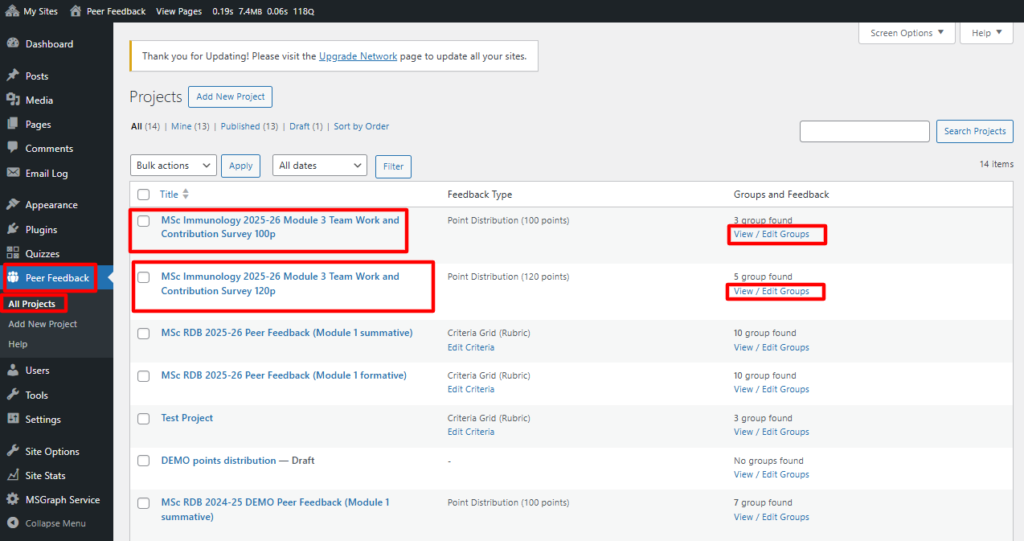
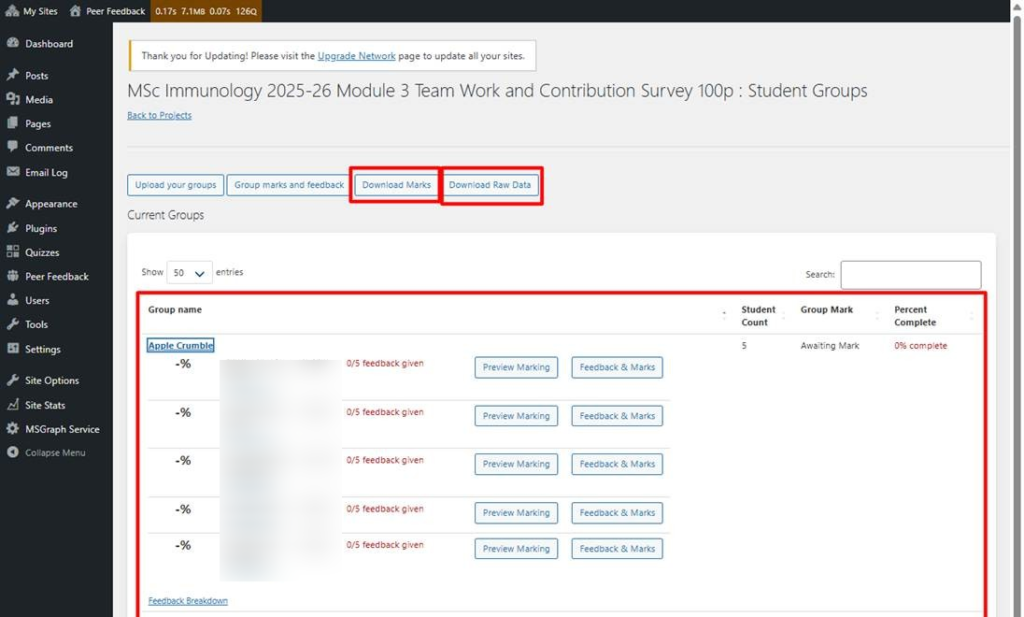
- Click on View / Edit Groups. You will be able to see each group’s progress and download marks and raw data there.