
Assessment Report Dashboard
This guide provides an overview of the key features within the Assessment Report Dashboard- displaying data from the 2024-25 and 2025-26 academic years.
Dashboard Navigation
Just below the dashboard title, you will find three main navigation buttons:
- Missed Assessment – Opens the page showing all missed assessment data.
- Low Scores – Takes you to the page identifying students who have achieved low assessment scores.
- Request Support – Opens a support request form where you can report issues, request enhancements, or suggest new features for future updates.
These buttons make it easy to move between dashboard pages or reach out for help when needed.
Filters and Controls
At the top of the dashboard, you’ll see the filtering panel:
- Select Academic Year – Filters the entire dashboard to display data for a specific academic year.
- Additional Filters – Accessible using the buttons below the main filter. These allow you to refine the data further, depending on the level and type of analysis required.
Once a filter is selected, all visuals update automatically to reflect your chosen criteria.
Key Dashboard Visuals
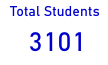
Total Students Card
Displays the total number of students recorded in Medlearn for the selected course or group, based on the filters applied.
Assessment Details Table
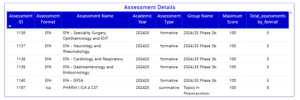
Provides:
- A list of assessments for the selected group
- Key details and information for each assessment
Detailed Student Attempts Table
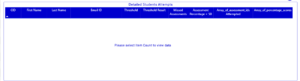
Shows student-level data, including:
- Assessment scores
- Missed assessments
- Percentage scores for completed assessments
Hovering over a student entry reveals further score details.
Power Automate Email Feature
You may see a Power Automate button labelled:
“Click here to email students in this report.”
Please note: this feature is currently disabled.
If you would like this functionality to be enabled in future, feel free to contact the team to discuss options.
Low Scores Page
The Low Scores page works in a similar way to the Missed Assessment page but includes two additional controls you must set before viewing results:
- Item Count – The number of low-score results you want to display
- Percentage Threshold – The score percentage that defines what qualifies as a “low score”
Once selected, the dashboard will display students and courses with assessment scores below your chosen threshold across different groups.
Support
If you ever need support or would like to request additional features, support links are available throughout the portal or submit a Medlearn Support ticket.
