
QR codes & registering attendance
What does the QR code do?
Each register has a unique QR code that is generated automatically. When students scan this code with a phone it takes them to a page confirming the register attendance.
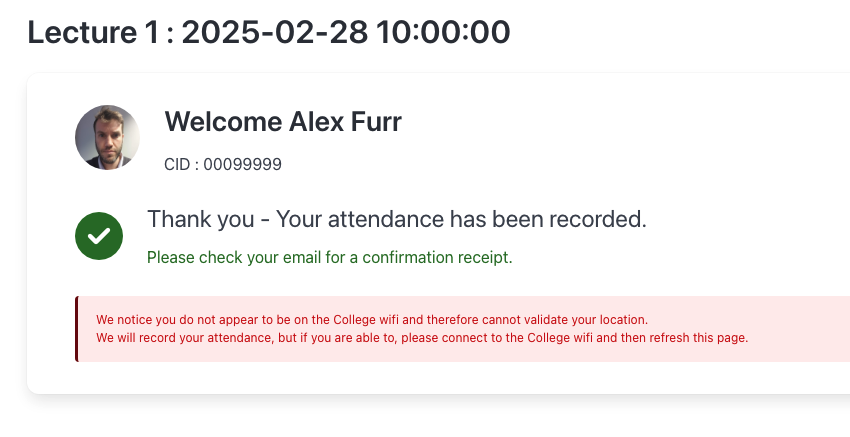
An example of the receipt page is shown below. The student will also receive an email notifying them of this successful action.
Bulk adding attendance
If you have attendance data in a spreadsheet you can instead upload this data instead of using the QR codes method.
To do this click the ‘Attendance’ button associated with that register, and then click the Bulk Upload Attendance tab.
The spreadsheet needs to be a CSV file with two columns.
- Column headers should be ‘CID’ and ‘Attendance’
- The CID column can be CID numbers OR full email addresses (if from Zoom for example).
- The attendance column accepts with ‘Present’ or ‘Absent’ as well as ‘1’ of ‘0’
Uploading a new spreadsheet will clear all existing attendance records i.e. you will need to upload a complete list of students each time.
FAQs
If students are seeing a 'Stale Request' error please ask them to visit the main MedLearn site FIRST. Ensure they are logged in and then re scan the QR code.
If this doesn't fix the issue in order to troubleshoot this problem please ask the student to create a support ticket with:
- the time of attempted self registration
- register name / date
- Any error messages shown
Registration will fail if the student does not have a valid CID on the system, but in this instance they would be shown a message to that effect i.e. you do no have a valid CID'
Finally, we highly recommend that students log into MedLearn BEFORE scanning the QR code. This will eliminate any possible problems that may occur with the single sign on process.
Like most self registration systems, the QR codes are not infallible. It would be possible for a student to take a photo of the QR code and message this to a student who is not present. Unless we insist all students use the College wifi when self registering (which would record the same IP address for everyone) we unfortunately have no way of knowing.
However, this is a serious breach of professionalism and may be grounds for dismissal for both the student who shared the QR code, and the student who used it.
One possible workaround for smaller groups would be to do a head count when the session had started and compare the student report count. If there is a discrepancy you could individually check student names against attendance.
Once an event has been created the QR code will not change, regardless of the event date / time.
If an event is deleted and recreated the QR code WILL change and will need to be redistributed.
If a student failed to register, but you have proof they attended you can change their attendance in the student list. To do this click the 'Attendance' button next to the register.
Search for the student in the student table and click the 'Change attendance' link. You can then change their attendance as required.
If you have appropriate admin access, you can view a students 'clicks' in MedLearn by going to their profile and clicking on the 'MedLearn activity' tab.
This will show you all pages visited by the student - and if you filter by "/attendance/" you can view all QR code scans. You can then click on the link to view which register the student was attempting to register for.
If there is no activity around the time of the register, the student did not scan the code.
